
Aero Crew Data · Bid Sorter
User Guide
How to set up your account, check what you could hold, and build your bid order.
Updated October 2026
What the Bid Sorter does
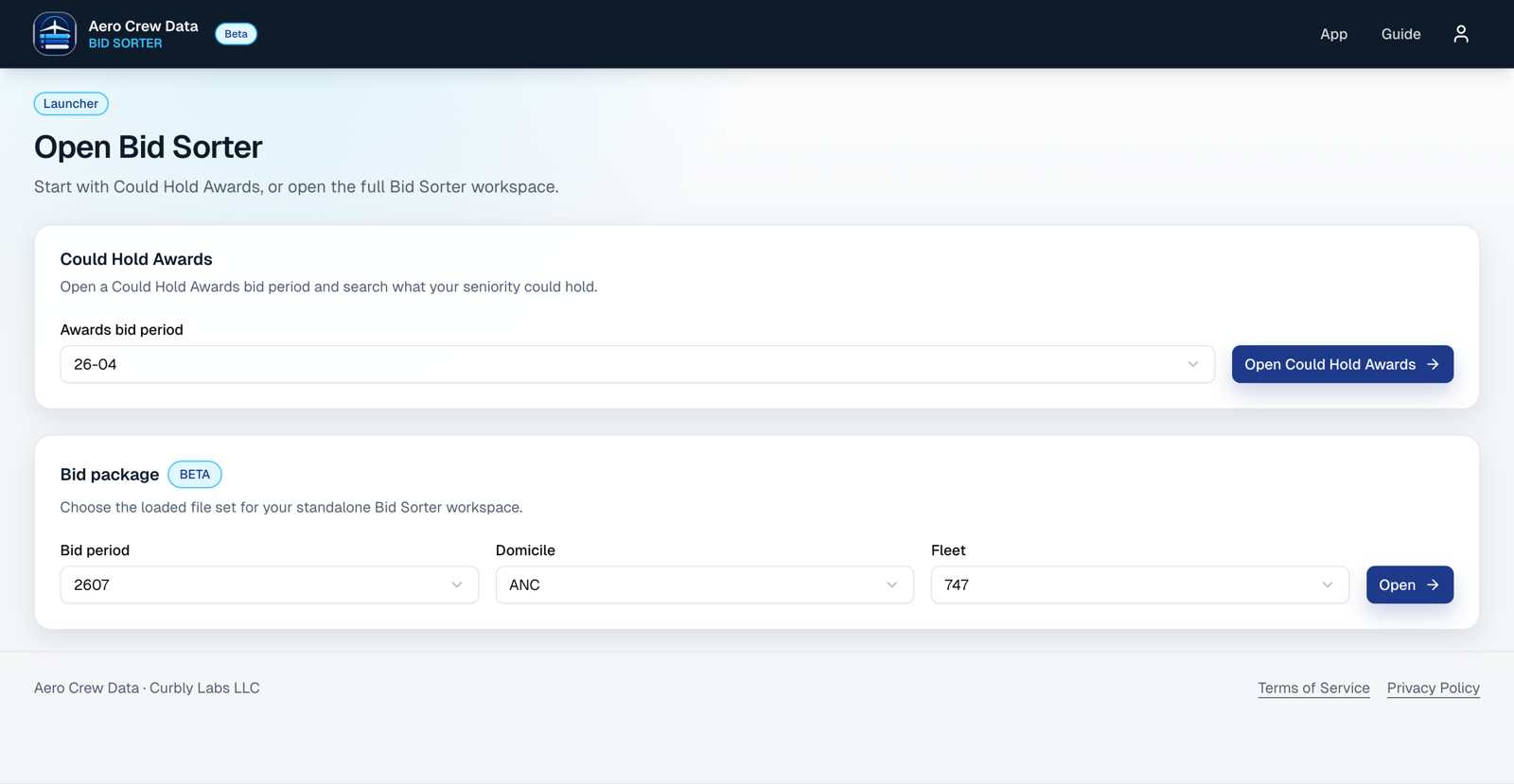
The Bid Sorter is a planning tool for UPS pilots. It has two main tools, both opened from App in the top menu:
- Could Hold Awards looks back at a finished bid and shows which lines your seniority could have held.
- Bid Builder lets you sort an upcoming bid package and arrange the lines into your own order.
Create your account
Sign-up is for UPS pilots and is checked against the pilot seniority list.
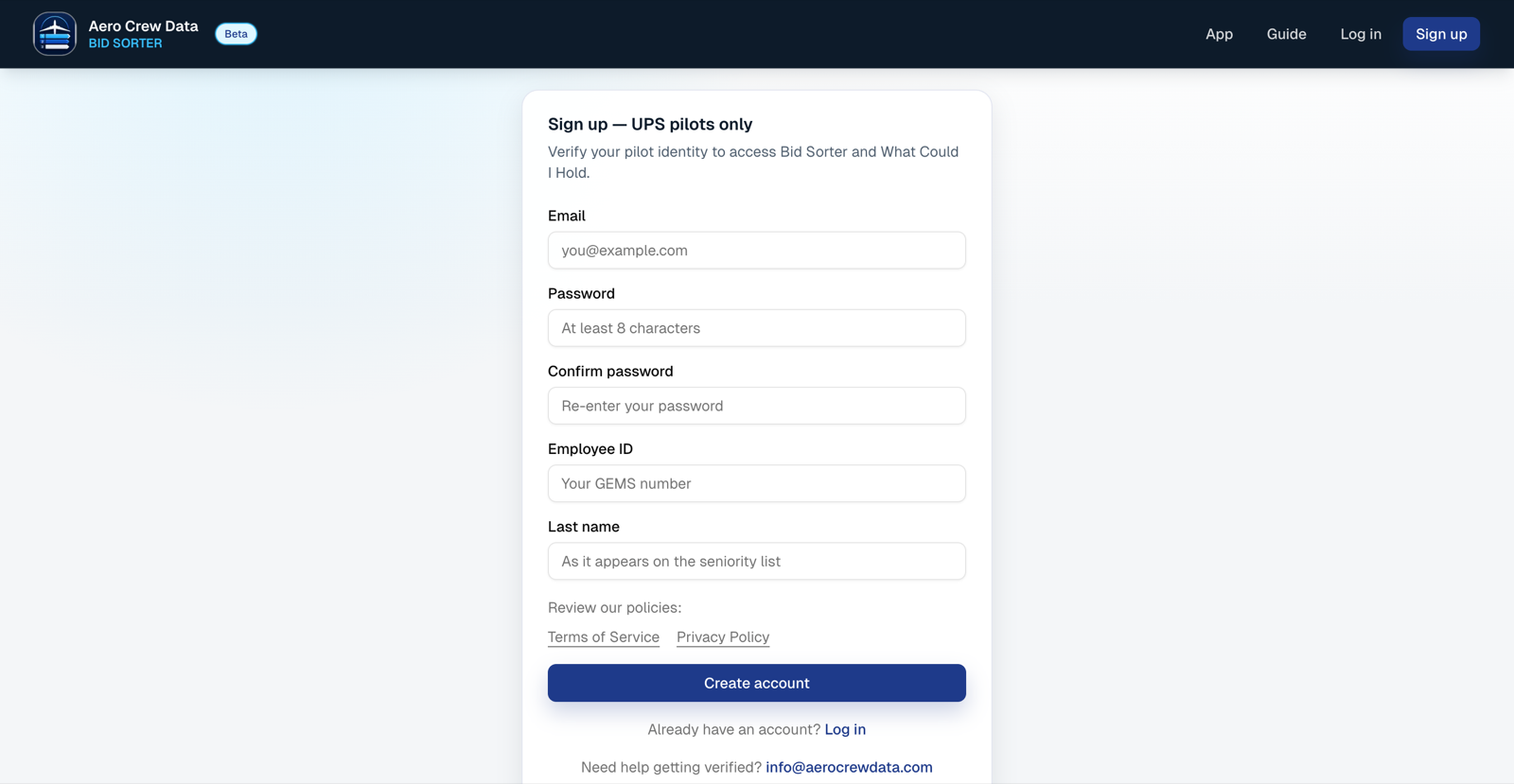
- Choose Sign up in the top menu.
- Enter your Email and a Password of at least 8 characters, then confirm the password.
- Enter your Employee ID (your GEMS number) and your Last name as it appears on the seniority list.
- Accept the Terms and Privacy Policy if asked, then create the account. You land on your Account page.
- Under Pilot profile, check that your Seat is correct. Choose Captain or First Officer if it needs changing.
Each employee ID can have one account. If your details are not accepted, see Troubleshooting.
Trial and subscription
The Bid Sorter access card on your Account page shows your access and billing status and the next important date.
- Start 7-day trial is offered once per account and needs a payment method. Unless you cancel, it becomes a $10 USD monthly subscription, tax included.
- Subscribe for $10/month is offered when a trial is no longer available.
- Manage billing opens the secure billing portal, where you can update your card or cancel. After cancelling, access continues to the end of the paid period.
- Refresh billing status rechecks your status if a payment does not show up right away. Use it before trying a second payment.
An account with an overdue payment loses access until billing is fixed.
Manage your account
| To do this | Go here |
|---|---|
| Open your account | Select the user icon in the top menu, then Account. |
| Sign out | Select the user icon, then Log out. |
| Reset a forgotten password | There is no reset link yet. Email info@aerocrewdata.com. |
| Delete your account | On the Account page, use Delete my account. Enter your current password and type DELETE. |
What is saved
| Where | What |
|---|---|
| Your account (any device) | Seat, your airport and nearby-airport choice, sort profiles, and the line buckets in each Bid Builder workspace. |
| This browser only | Visible columns, Calendar or Bid Packet view, and the Could Hold line order. |
| Not saved | Could Hold Awards filters and sort settings. |
Choose a schedule view
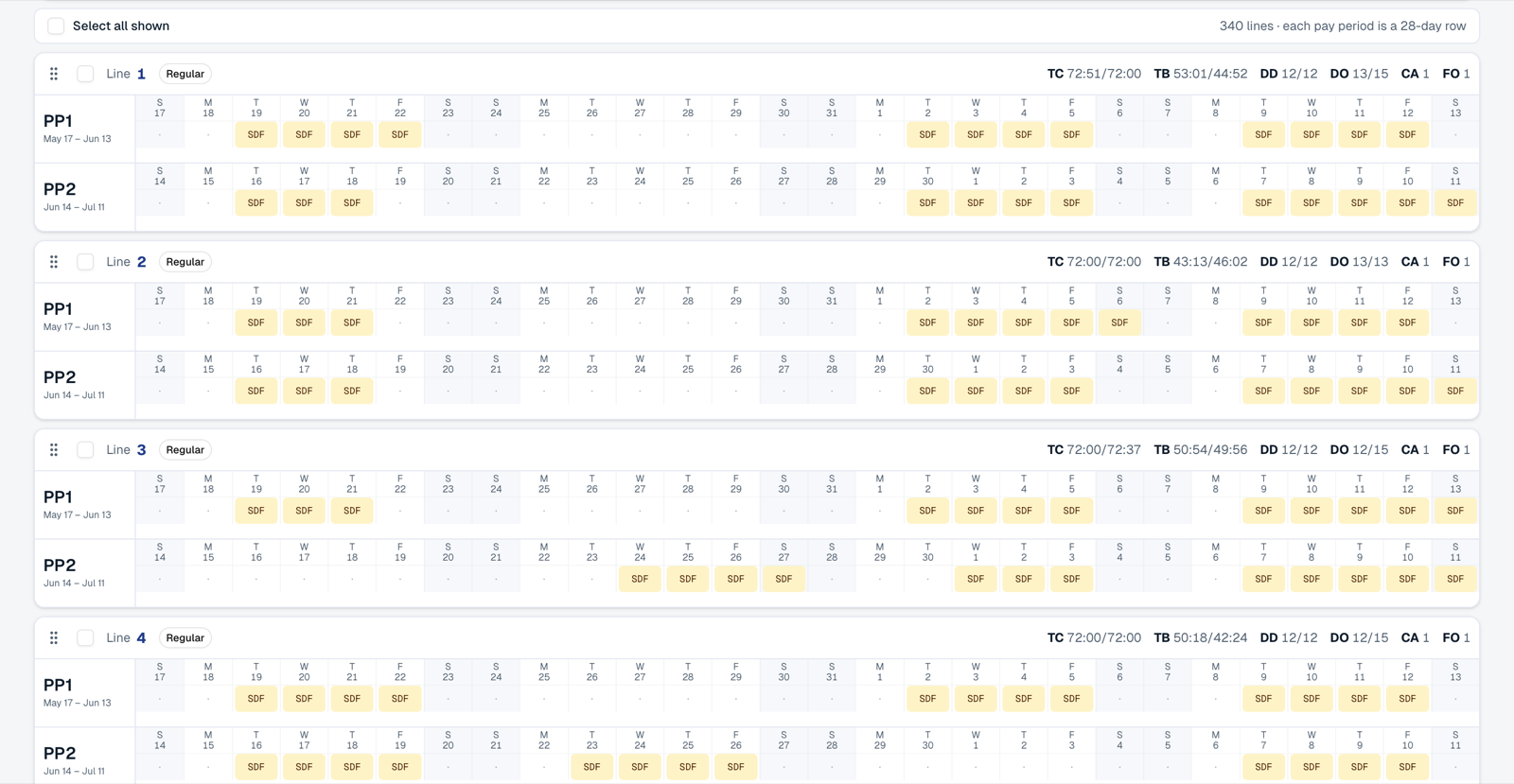
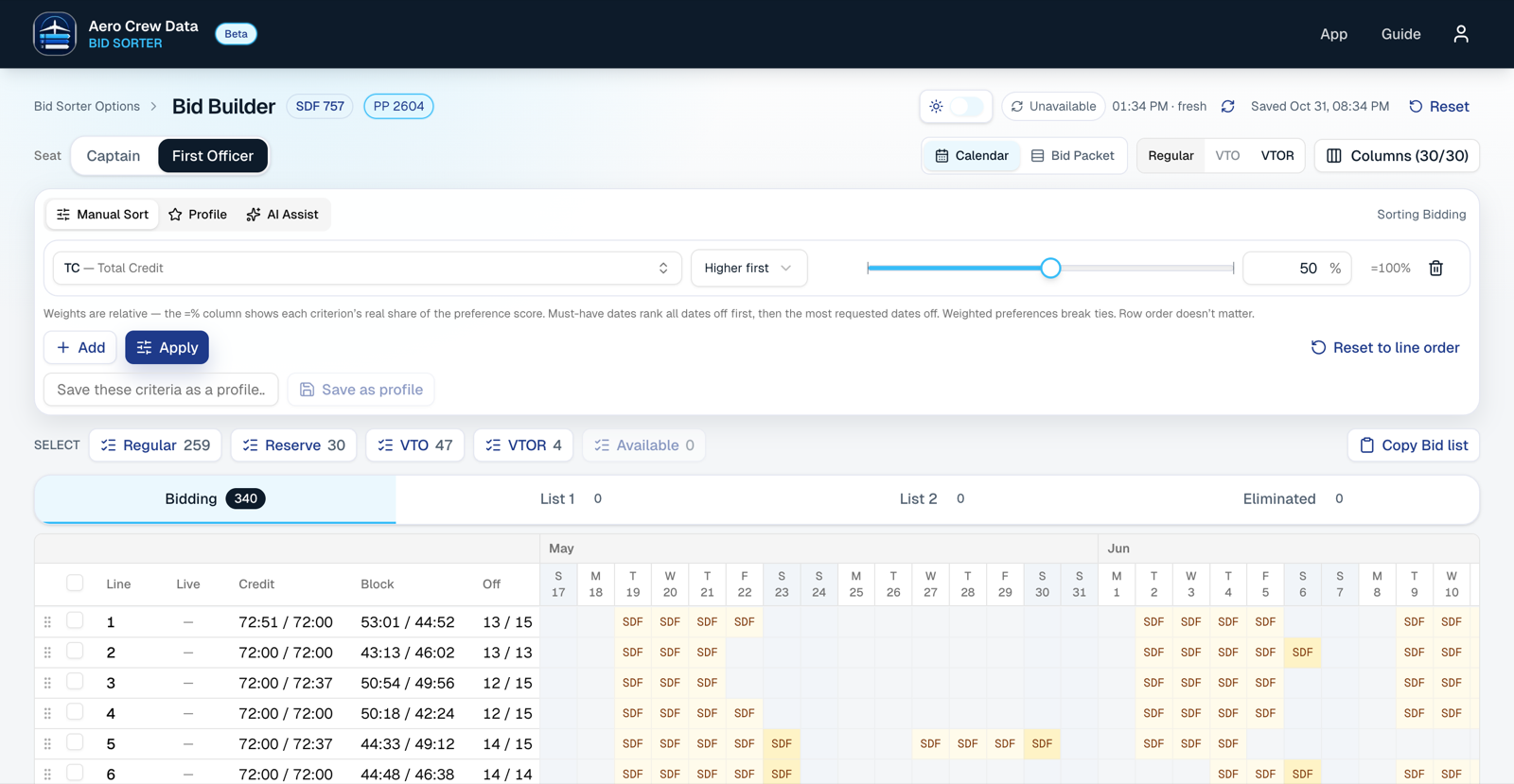
Could Hold Awards and Bid Builder can each draw lines in two ways. This guide uses Bid Packet as the main view, because it lays out each line by pay period, much like the printed bid packet.
How to switch
- Open Could Hold Awards or Bid Builder.
- Near the top right of the page, find the Calendar and Bid Packet buttons.
- Select the view you want. The highlighted button is the one in use.
Your choice applies to both tools and is remembered in this browser. A new browser or device starts on Calendar, so select Bid Packet once to switch it there too.
Which one to use
| Bid Packet | Calendar | |
|---|---|---|
| Layout | A card for each line, with a 28-day row for PP1 and another for PP2. | One row per line, with all dates running side by side. |
| Line totals | At the top of each card: TC, TB, DD, DO, and the CA and FO counts. | In the Credit, Block, and Off columns, plus any metric columns. |
| Best for | Reading a line closely, one pay period at a time. | Scanning and comparing many lines on one screen. |
| Metric columns | Not available. The Columns button is hidden. | Available through Columns. |
| Sort by column header | Not available. | Available. |
The sort panel, buckets, line selection, and pairing details work in both views, and switching views does not change your line order.
Could Hold Awards
Use this after a bid has been awarded to see what your seniority could have held, including at other domiciles and on other equipment.
- Select App, choose the Awards bid period, and select Open Could Hold Awards.
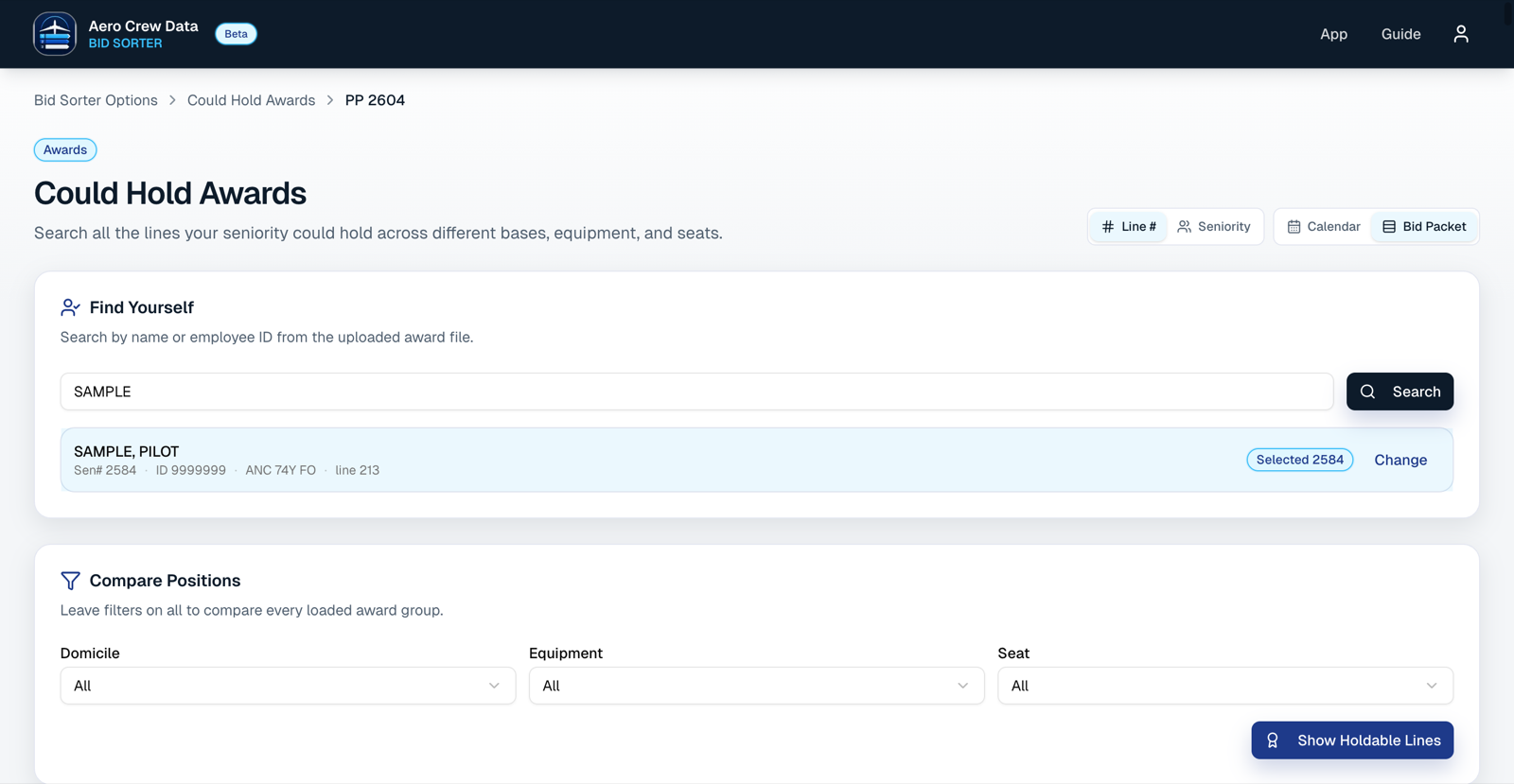
- Under Find Yourself, enter your name or employee ID, select Search, then choose Select next to your record. Use Change to pick again.
- Under Compare Positions, narrow by Domicile, Equipment, and Seat, or leave them on All.
- Select Show Holdable Lines. Results are grouped by domicile, equipment, and seat.
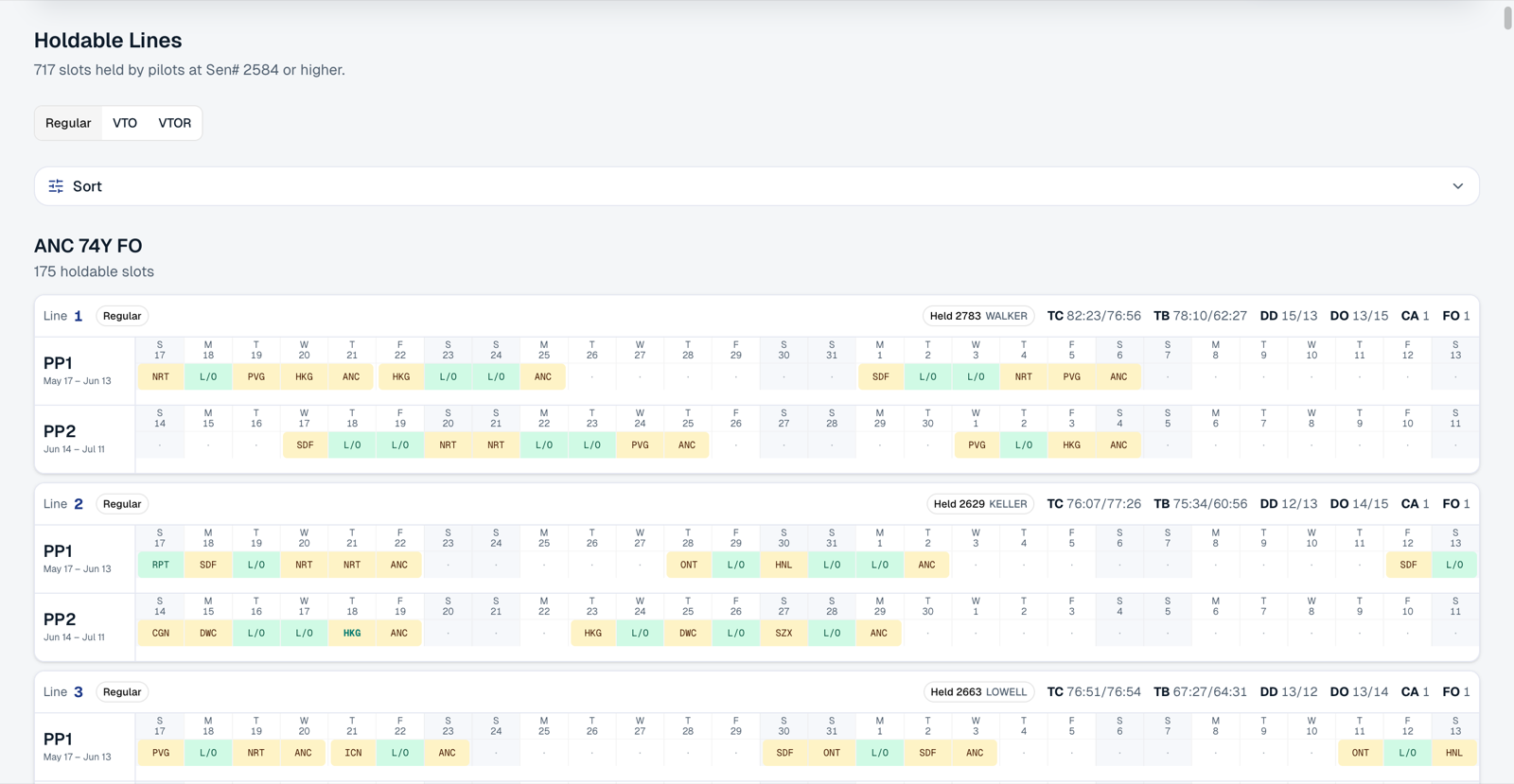
A line counts as holdable when your seniority number is at or below the number of a pilot who held it. The Held label on each line shows the seniority number and name of the most junior holder.
Change what you see
- Regular / VTO / VTOR switches the type of line.
- Line # / Seniority / Sorted changes the order. Sorted appears after you run a sort.
- Calendar / Bid Packet changes how each line is drawn. See Choose a schedule view.
- Columns, in Calendar view, chooses the metric columns. See Metric columns.
- The Sort panel ranks each group separately. Use Add, Sort, and Clear.
Bid Builder
Use this to work through a bid package and build your preferred line order.
- Select App. Under Bid package, choose the Bid period, Domicile, and Fleet, then select Open.
- If asked, pick your seat. Lines do not appear until a seat is chosen.
- Sort the lines, using the options in the next section.
- Move lines between buckets until Bidding is in the order you want.
- Use Copy Bid list to copy your order, then enter it in the official bidding system.
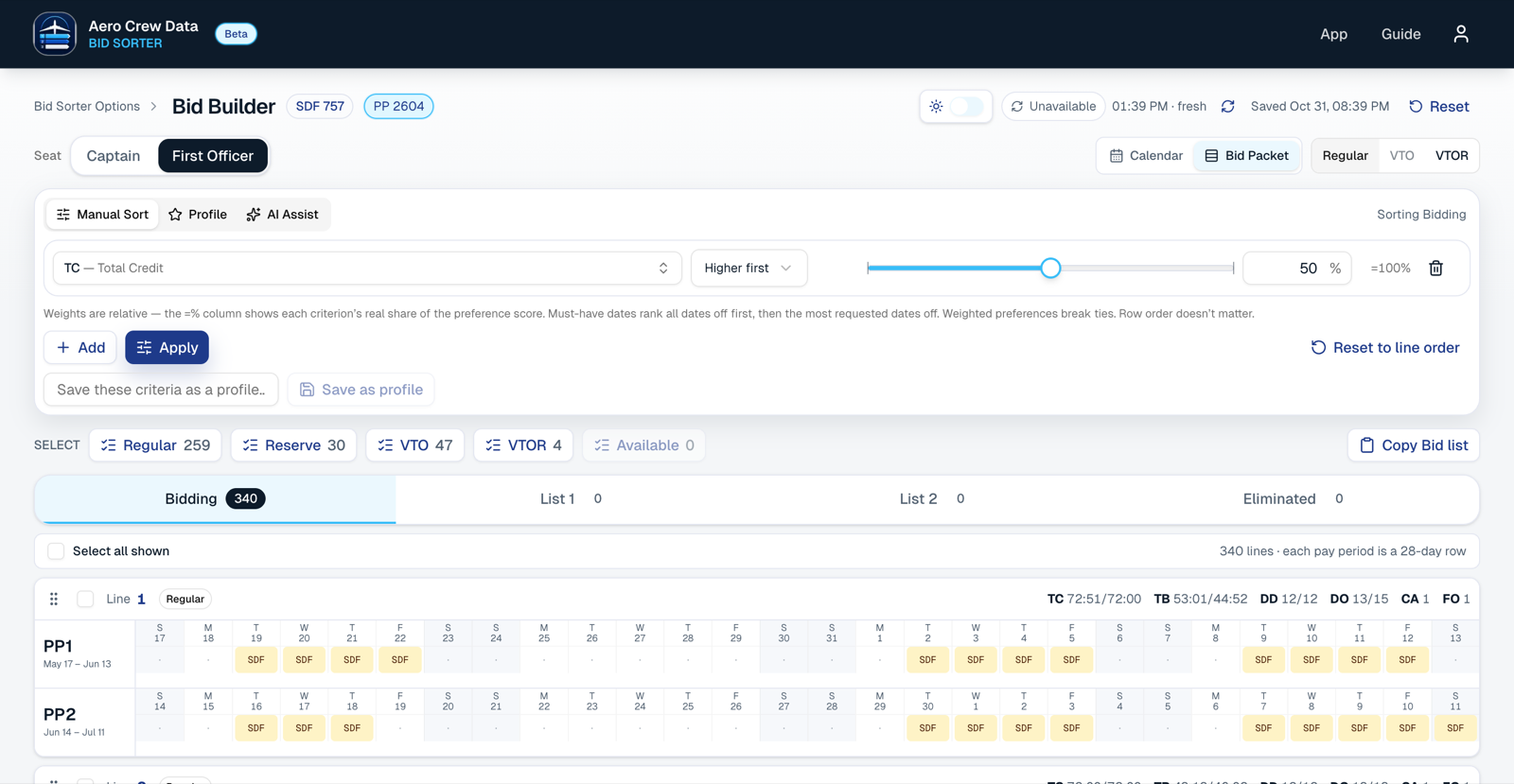
Your work saves automatically. The header shows Saving… and then Saved with the time.
Buckets
| Bucket | Use it for |
|---|---|
| Bidding | The lines you plan to bid, in order. Every line for your seat starts here. |
| List 1, List 2, and any you add | Your own working lists, for lines you want to set aside. Select Add list for up to 6. Removing an added list (its ×) sends its lines to the bottom of Bidding. The iPad app shows added lists inside List 2. |
| Eliminated | Lines you have ruled out. |
Drag lines, or tick them and use the toolbar to send them to the Top of or Bottom of a bucket. The Select buttons pick all Regular, Reserve, VTO, VTOR, or Available lines at once. Reset returns every line for your seat to Bidding.
Live availability
For regular lines, the Live column uses the current bid snapshot. It refreshes every 5 minutes, or when you select the refresh icon.
| Badge | Meaning |
|---|---|
| Holding | The line the snapshot currently shows you holding. |
| Open | Still available in the snapshot. Open xN means N are open. |
| Taken | Already taken in the snapshot. |
| Unknown | The snapshot cannot say. |
Sort your lines
The sort panel has three tabs. After a sort you can use Undo from the message that appears.
Manual Sort
- Select Add and choose what to sort by. You can use up to 20 rows.
- Choose a direction, such as Higher first or Lower first.
- Set a weight from 0 to 100. The =% figure shows that row's real share of the total.
- Select Apply. Use Save as profile to keep the setup, or Reset to line order to start over.
Profile
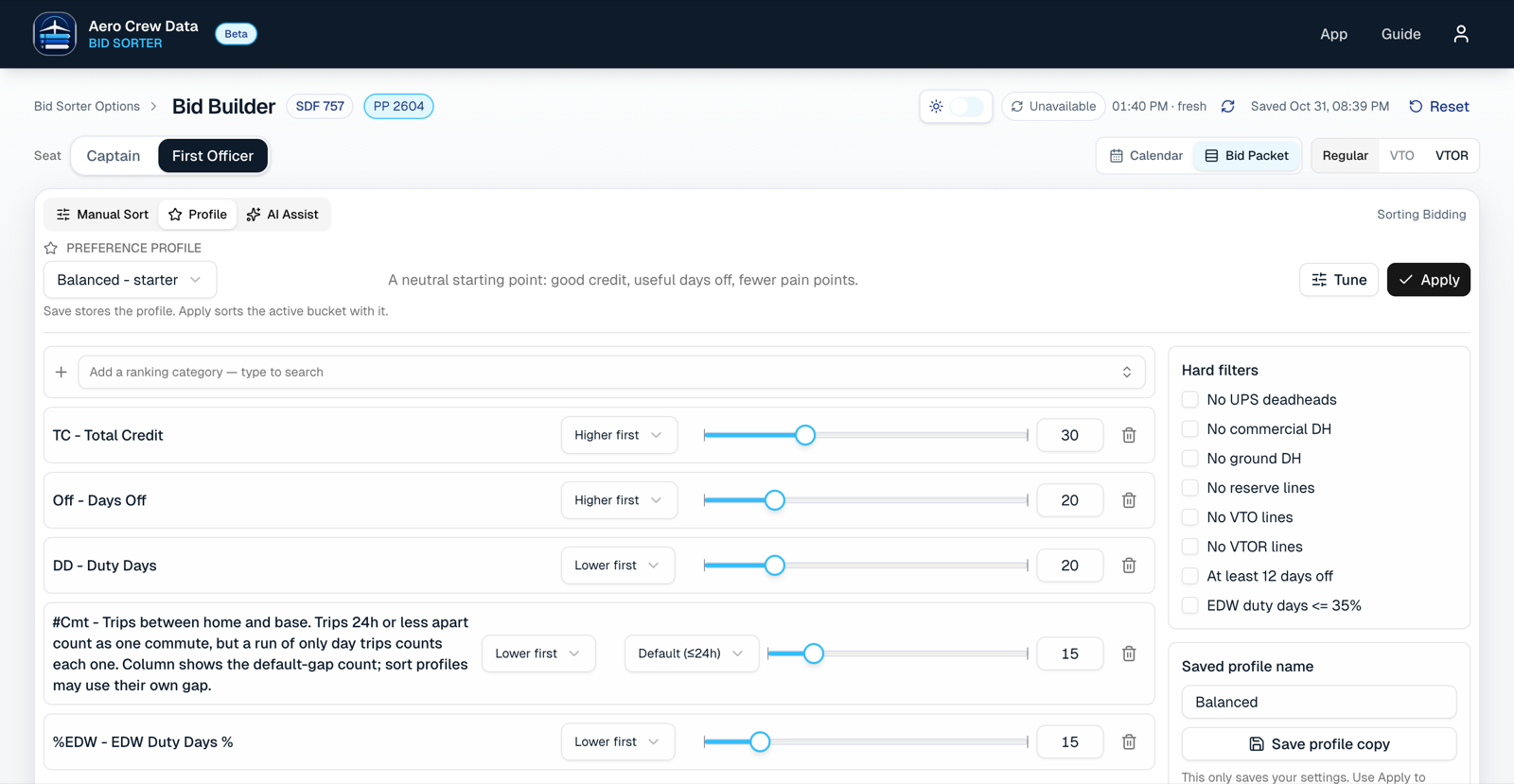
Under Preference profile, start from a saved profile or a built-in one, then select Apply. Select Tune to adjust its rankings and weights, set hard filters, and save your own copy. Saving a profile does not reorder your bid by itself.
| Built-in profile | Designed to |
|---|---|
| Balanced | Give a neutral start: good credit, useful days off, fewer pain points. |
| Commuter | Prefer fewer trips between home and base and avoid awkward positioning. |
| Weekends / QOL | Favor weekends off, fewer duty days, fewer EDW duties, and more days at home. |
| Max Credit | Push high-credit, efficient lines higher, even if they work harder. |
| Low Fatigue | Reduce duty intensity, EDW exposure, deadheads, and trip churn. |
Hard filters can move lines that fail a rule into Eliminated: No UPS deadheads, No commercial DH, No ground DH, No reserve lines, No VTO lines, No VTOR lines, At least 12 days off, and EDW duty days <= 35%.
AI Assist
Describe what you want in plain words, such as “Prefer weekends off and fewer commutes”, then select Apply. Check the resulting order, and use Undo if it is not what you meant.
Column headers (Calendar view)
Selecting a column header only changes the view. To make that order your bid, select Apply this order to my bid. Clear sort removes the view sort.
Other sort options
- Specific dates off: Prefer off weighs the dates with your other choices. Must have ranks lines with those dates off first, and other preferences break ties.
- Layover nights at… and Layover hours at… favor or avoid a layover city.
- Avoid UPS DH, Avoid CML DH, and Avoid DHG cover UPS, commercial, and ground deadheads.
- EDW duty days, and the line types Regular lines, Reserve lines, VTO lines, and VTOR lines.
- Asia trips and Europe trips, for SDFZ only.
Read a line
These colors mean the same thing in both views. In Bid Packet view, a dot marks a day with nothing scheduled.
| Looks like | Meaning |
|---|---|
| Amber cell | Flying or a report. |
| Indigo cell | Reserve. |
| Green cell | Layover (L/O). |
| Fuchsia text | Commercial deadhead. |
| Teal text | Ground deadhead. |
| Rose text | UPS deadhead. |
| Sky tint | A date you asked to have off, and the line is free. |
| Red ring | A date you asked to have off, but the line works it. |
Pairing details
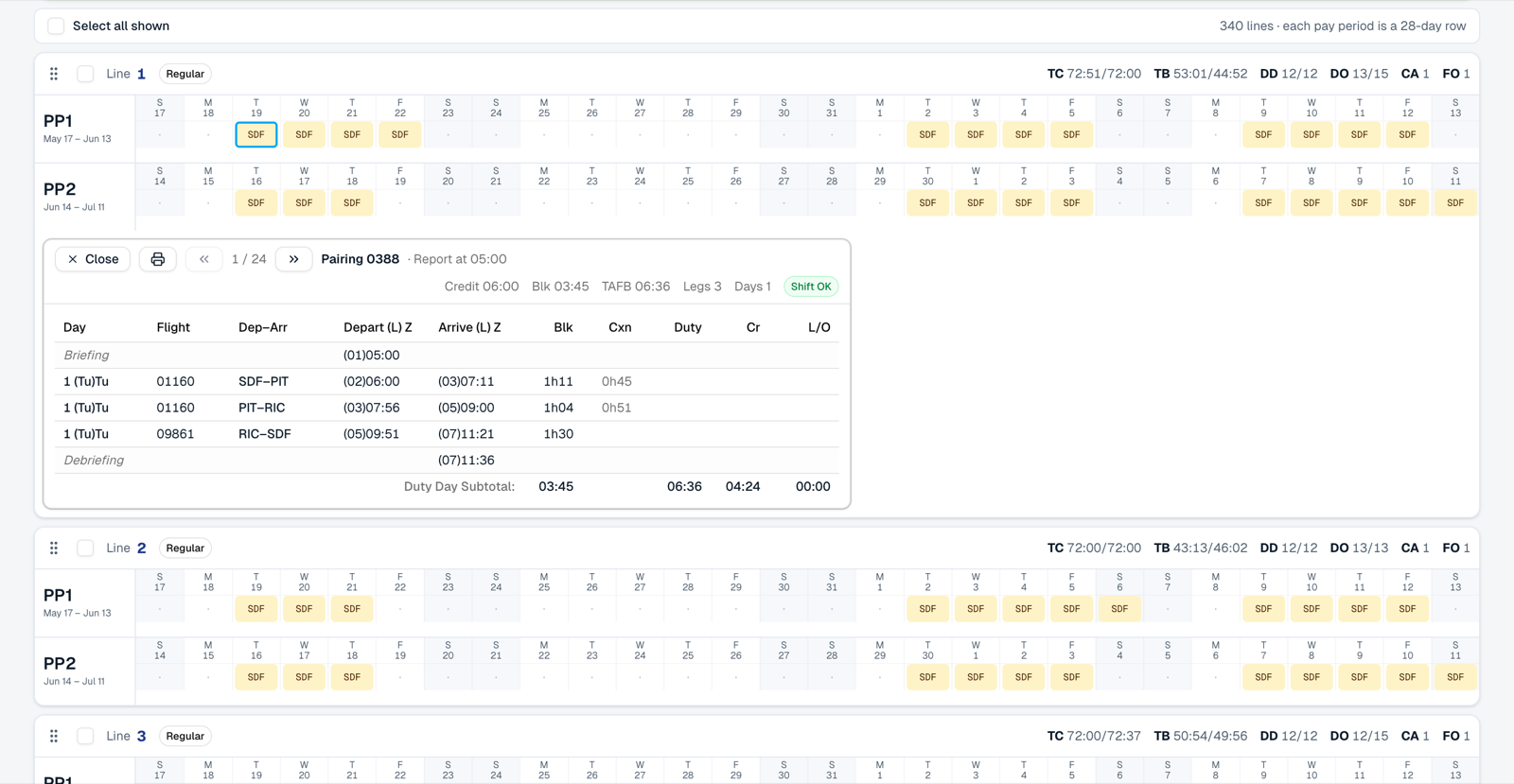
Select a flying cell to open the pairing. It shows Report at, Credit, Blk, TAFB, Legs, and Days, with badges for Flips, 24h L/O, and Shift OK or Shift ✕ (CBA 13.A.1.h). Use the arrows to step through pairings. The print button opens your browser's print window, where you can also save a PDF.
Metric columns
These columns appear in Calendar view. Use Columns to show or hide them. Bid Packet view shows only the line totals. “Sorts first” is the default direction when you add the metric to a sort, not a judgment about what is best for you. You can change it.
| Column | Meaning | Sorts first |
|---|---|---|
| TC | Total Credit | Higher |
| TB | Total Block | Higher |
| DD | Duty Days | Lower |
| Off | Days Off | Higher |
| Trips | Trip count | Lower |
| TDT | Total Duty Time | Lower |
| TAFB | Total time away from base | Lower |
| Av DT | Average duty time per duty period | Lower |
| Av DP | Average duty periods per trip | Lower |
| NoL | Number of landings | Lower |
| Av L/DP | Average landings per duty period | Lower |
| CML→W | Commercial-to-work trips | Lower |
| CML→H | Commercial-to-home trips | Lower |
| DH⇄B | Deadhead out-and-back from base | Higher |
| B/P | Block-to-pay ratio | Higher |
| B/TAFB | Block-to-TAFB ratio | Higher |
| Dt/P | Duty-to-pay ratio | Lower |
| Dt/TAFB | Duty-to-TAFB ratio | Lower |
| Av LO | Average layover | Higher |
| Av Gnd | Average ground time | Lower |
| %Intl | Percent international duty periods | Lower |
| Flips | Report-time shifts of 8 hours or more between back-to-back duty periods | Lower |
| 24h LO | Rests of 22 to 26 hours | Lower |
| %Sat / %Sun / %Wknd | Percent of Saturdays, Sundays, or weekends off | Higher |
| EDW | EDW trip count | Lower |
| %EDW | EDW duty days as a percent of duty days | Lower |
| CoC | Carry-out credit | Lower |
| #Cmt | Round trips between home and base | Lower |
| #Local | Trips that start or end at your airport | Higher |
How the special counts work
- Flips count within a trip or across breaks under 48 hours. A sort can use a threshold from 1 to 12 hours.
- 24h LO can use a tolerance from 0 to 6 hours in a sort.
- #Cmt groups trips separated by 24 hours or less into one block. A block with a multi-day trip counts as 1. A block of only day trips counts 1 for each trip. The gap can be set from 1 to 72 hours in a sort. The column is blank for lines with no trips, such as reserve.
- #Local (Local airport in sorts) gives 1 point when a trip's first flying leg leaves your airport and 1 when its last flying leg lands there. Deadheads are ignored. Set Your airport and Include nearby airports in the sort row.
Columns always show the default thresholds. Custom values only change the sort.
Troubleshooting
| You see | What to do |
|---|---|
| We could not verify those pilot details | Check your Employee ID (GEMS number) and enter your last name exactly as on the seniority list. If it still fails, email support, as the list may not include you yet. |
| We could not create the account with those details | An account may already exist for that email or employee ID. Try logging in, or email support. |
| Too many attempts | Wait a few minutes and try again. |
| Incorrect email or password | Check for typing errors. To reset a forgotten password, email support. |
| Bid Sorter access required | Select Manage account to check your trial or subscription. |
| Verify your pilot identity before subscribing | On the Account page, enter your Employee ID and last name and select Verify. |
| Confirmation is taking longer than expected | Select Refresh billing status. If nothing changes, email support before paying again. |
| Pick your seat to see your lines | Choose Captain or First Officer. |
| No matching award rows found | Try another spelling or your employee ID. You can only be found if you appear in that period's award file. |
| No bid awards have been loaded for this bid period yet | Choose another period, or check back after awards are loaded. |
| No holdable lines found for this selection | Widen the filters, for example by setting them to All. |
| No matching regular .BP grid row | The award exists, but its line data has not been loaded. Please email support with the bid period and position. You cannot upload this file yourself. |
| VTO source unavailable | VTO data has not been loaded for this package. |
| Enter your airport to use this option | Enter a 3-letter airport code in the sort row. |
| This is your base, so this option has no effect | Local airport only applies when your airport differs from your base. |
| The Live status shows Unavailable or Error | The snapshot could not be read. Select refresh or try again later. The rest of the tool keeps working. |
Still stuck? Email info@aerocrewdata.com with the bid period, domicile, fleet, and what you saw.